¶ Introduction
Static numeric parameters are parameters that change slowly and require prolonged interaction with the system. Unlike dynamic parameters, they cannot be quickly driven through their entire value range.
Examples include fuel level (refueling or fuel draining), engine temperature (warming up and cooling down), and vehicle mileage (driving).
For these parameters, it is important to plan log recording in advance to capture multiple operating states and obtain a sufficient range of values.
Unlike dynamic parameters, the key factor here is not the shape of the graph, but the pattern of value changes across multiple logs.
¶ Logs
The purpose of recording multiple logs is to capture the same system under different values of the target parameter.
Unlike dynamic parameters, the focus here is not on the shape of the graph but on how the parameter changes from one log to another.
The main rule is simple:
Each log should differ only in the value of the target parameter. All other conditions should remain as similar as possible.
A typical workflow is:
- Record the current value of the parameter.
- Change the parameter (drive the vehicle, warm up the engine, refuel, etc.).
- Record another log.
- Repeat as necessary. The more operating states you capture, the easier it is to identify the relationship.
Important:
1.The parameter change should be significant (not just +1 unit, but a clearly noticeable step)
2.Always document the value displayed on the instrument cluster, preferably with a photograph.
Example: Vehicle Mileage
- Record a log at the current mileage.
- Drive at least 10 km.
- Record another log after the trip.
This produces two logs with a known difference in mileage, making it possible to locate the corresponding value in the CAN bus.
¶ Log Analysis
When analyzing logs, it is important to distinguish between acceptable data variations and impossible ones.
For example, if all logs were recorded with the vehicle stationary:
- vehicle mileage cannot change;
- engine hours and total fuel consumption can only increase or remain unchanged;
- engine temperature and fuel level may fluctuate slightly.
Add the recorded logs to the Analyze Log tool and examine the summary table for bytes containing markers from the compared logs.
¶ Example 1. Fuel Level
Five logs recorded at different fuel levels are compared. Therefore, start by examining bytes that contain all five marker colors.
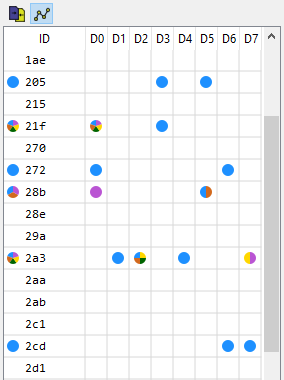
Now examine each candidate individually.
In this example, the logs were recorded during a refueling process.
Fuel level for each log:
- 10 L
- 25 L
- 40 L
- 55 L
- Refilled to 80 L
Look for data that correctly reflects the fuel level progression.
The data in message 21F, byte D0, clearly behaves like noise and can be discarded.
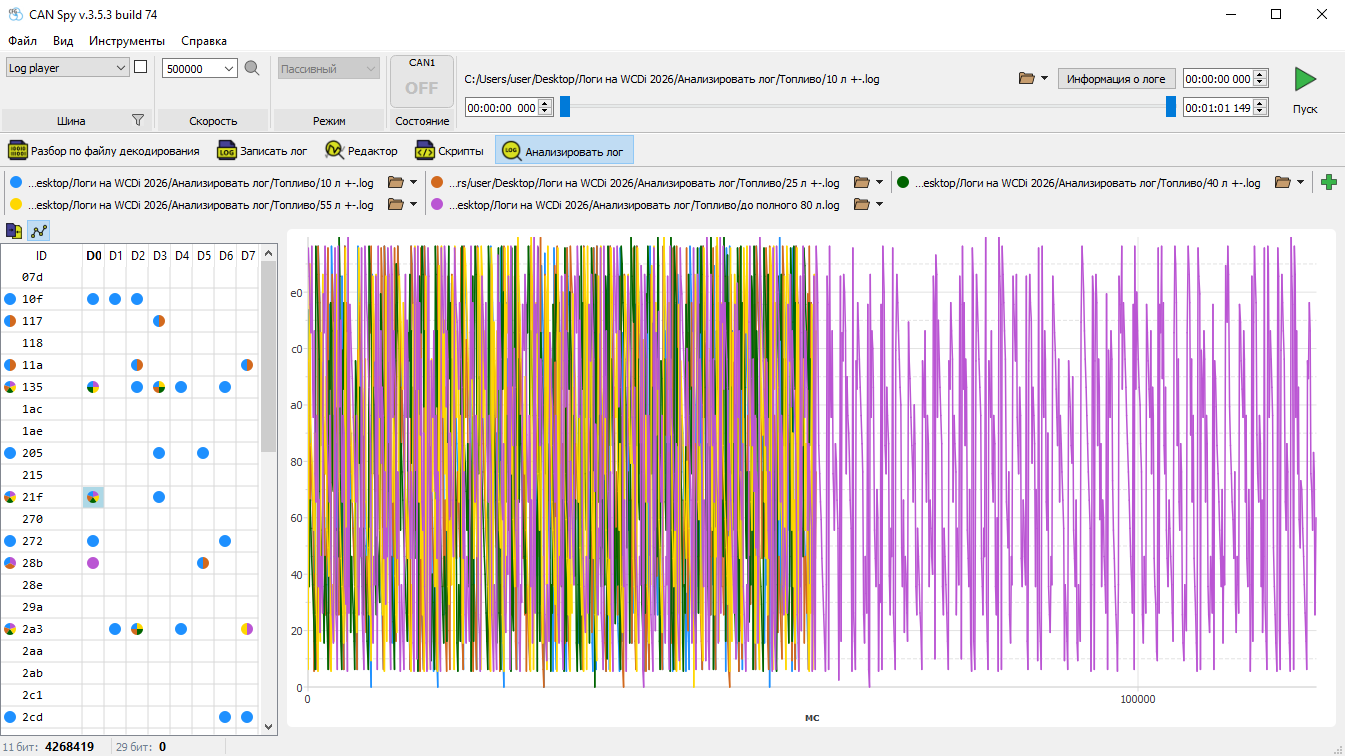
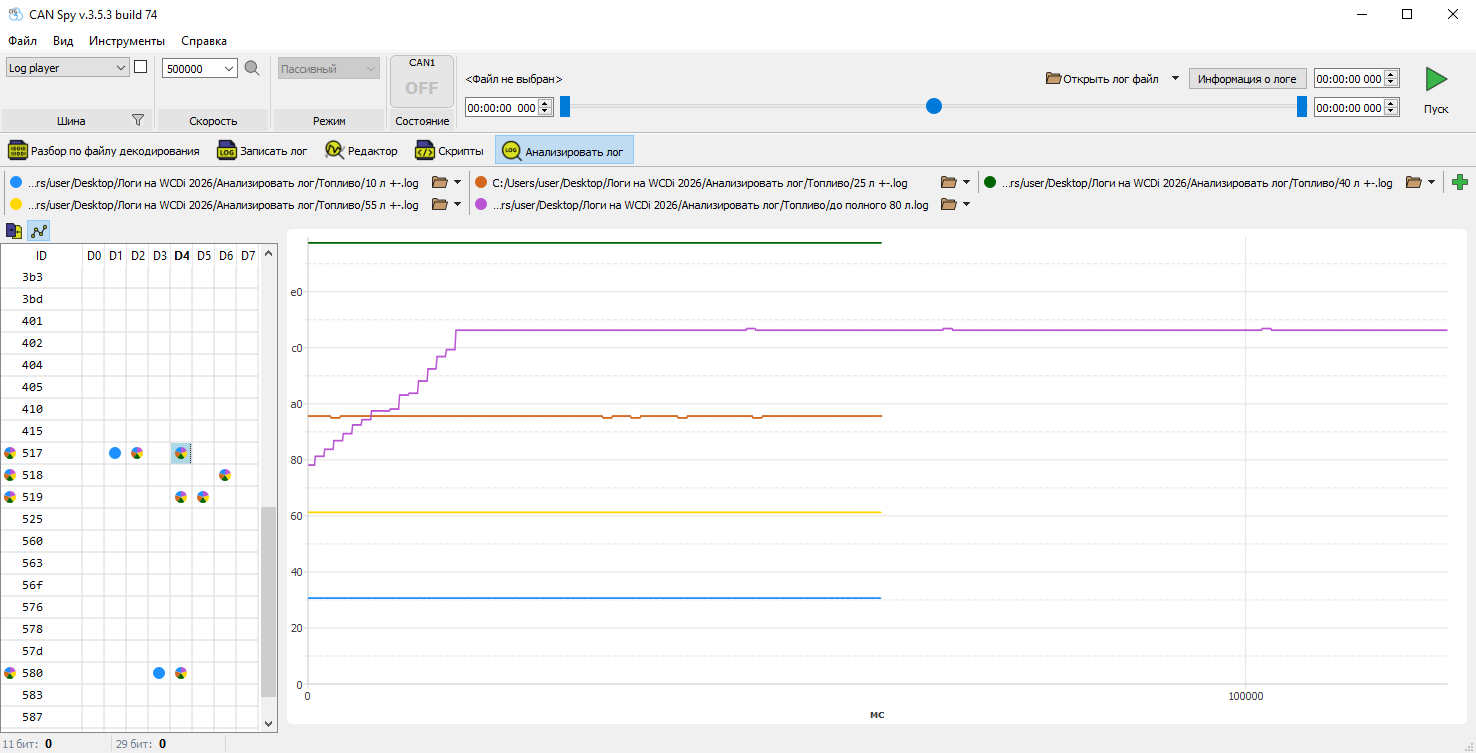
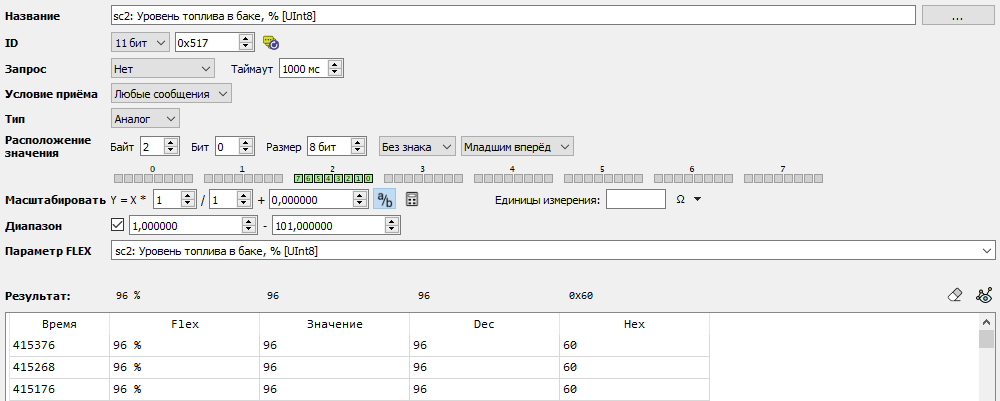
The values in message 517, byte D2, closely match the recorded fuel levels. The graphs increase consistently from one log to the next, and each step corresponds to the increase in fuel level.
This is a good candidate, but continue examining the remaining bytes.
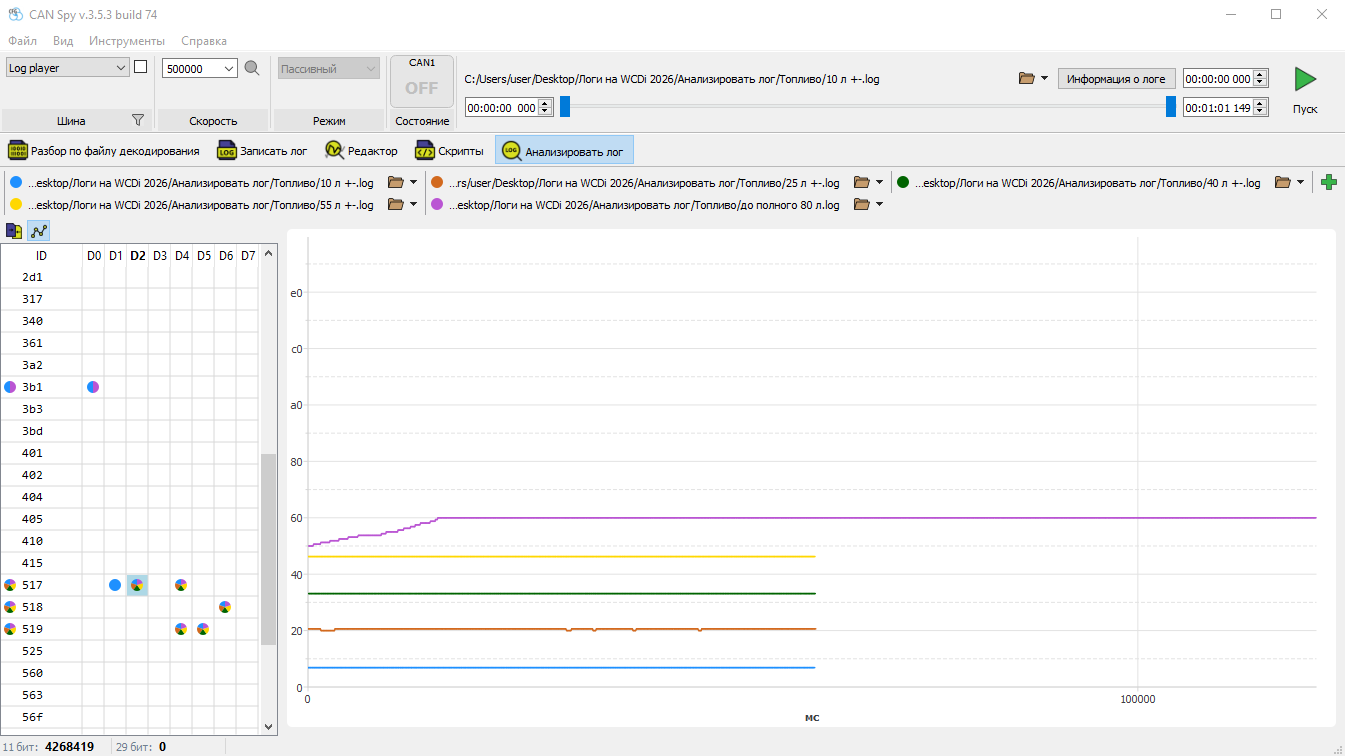
Message 517, byte D4, does not match the expected behavior as well. Some values from the fifth log are lower than those from the fourth, while the third log contains values higher than all the others. This could indicate an error code or an unavailable value, which could later be filtered out using a valid value range.
This candidate is clearly weaker than the previous one, so it would normally be discarded. However, it could still be used if no better candidate were available.
Candidates 518 D6 and 519 D4 show an inverse relationship.
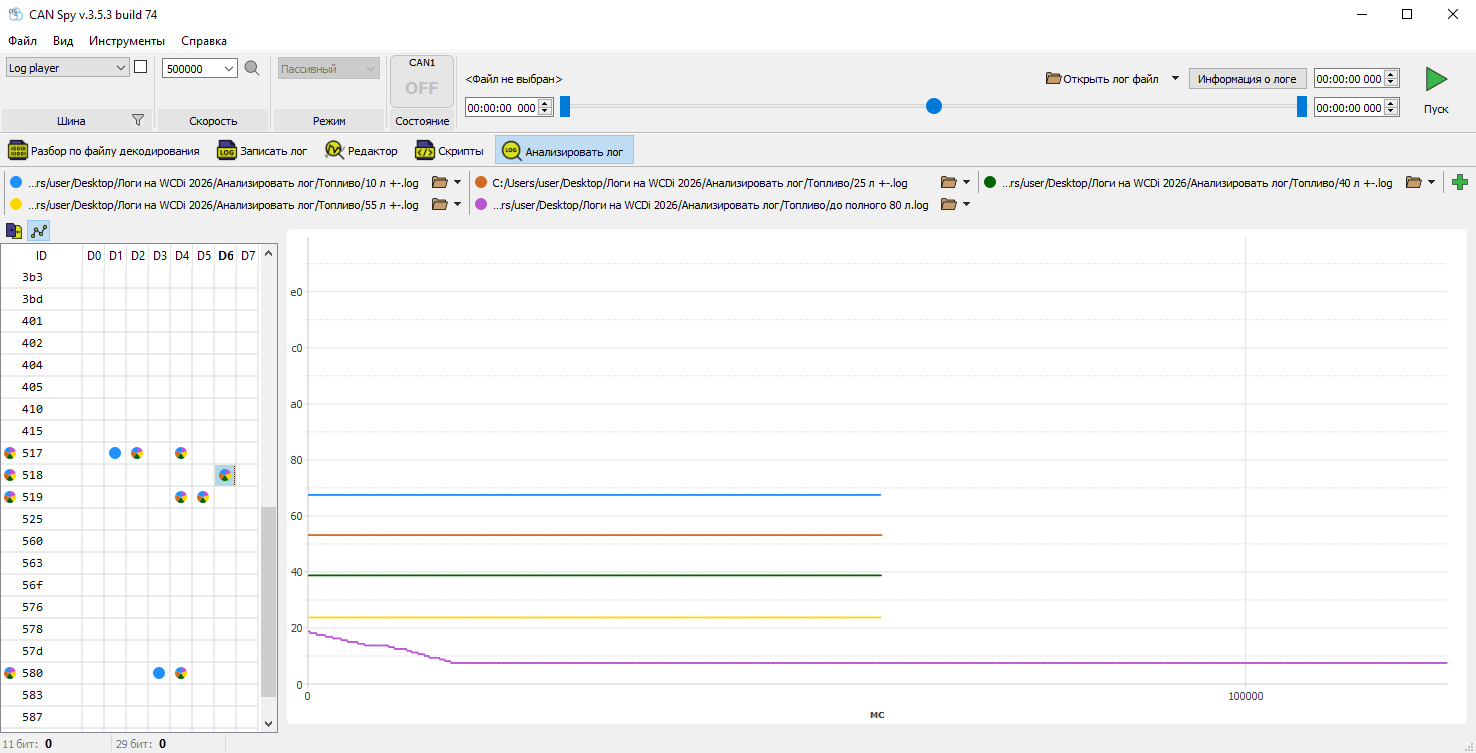
These values may represent the remaining free capacity of the fuel tank. They can still be used to calculate fuel level by applying a negative scaling factor.
Byte D5 of message 519 produces a graph similar to 517 D2, but with a different scale.
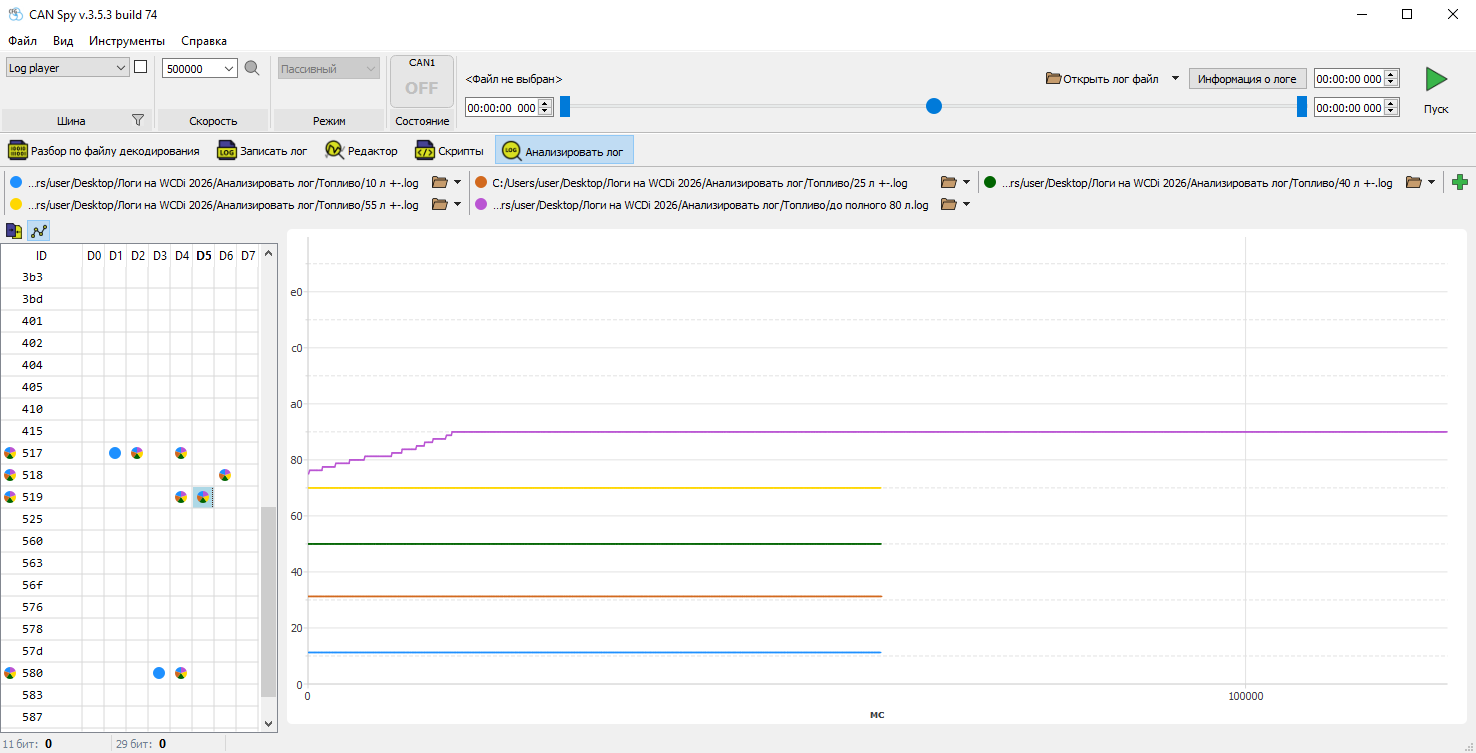
Both 519 D5 and 517 D2 are suitable candidates.
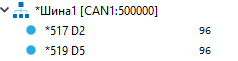
Both parameters correctly represent the fuel level. However, message 519 requires a scaling factor of 2/3, whereas message 517 provides the value directly without scaling. Either implementation can be used.
If no suitable candidates are found among bytes containing all markers, continue examining bytes with fewer colors. A single refueling operation does not always change the transmitted CAN value because some parameters are transmitted with discrete steps (for example, 0%, 25%, 50%, 75%, 100%). One refueling may simply not cross the next threshold.
The parameter configuration procedure is identical to the one described in the previous article on Dynamic Numeric Parameter Detection, so it is omitted here.
Final result:
¶ Example 2. Vehicle Mileage
Two logs were recorded with mileage values of 113645 and 113960.
Before searching the data, evaluate how much the parameter has changed.
Converted to hexadecimal:
113645 = 1BBED
113960 = 1BD28
Even without applying any scaling, the mileage value occupies 2.5 bytes. A CAN parameter cannot occupy fewer bits than required by its value, although it may occupy more due to scaling.
¶ Message Search
Mileage can be searched using the Message Search tool.
The idea is to search for the value as it might be transmitted on the CAN bus. Enter the dashboard value into the DEC field and try different scaling factors and parameter formats.
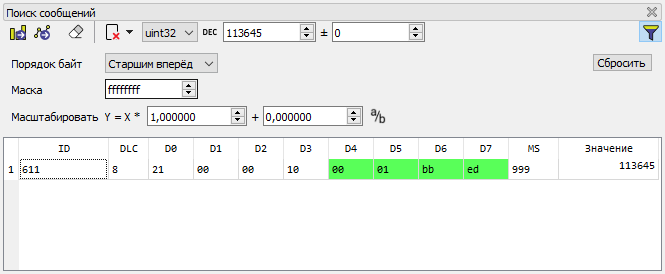
The parameter may use scaling factors such as 10, 25, or 100.
It may occupy 3 bytes or 4 bytes. If the parameter actually occupies only three bytes, searching with a four-byte mask ending in FF will fail. Therefore, the parameter size must also be considered.
This approach is not guaranteed because you must correctly guess the parameter format, including its mask, byte order, and scaling factor.
¶ Log Comparison
Graph comparison guarantees that all changing values become visible for further analysis.
Look for values that change monotonically and proportionally to the mileage difference between the logs.
Unlike the previous fuel level example, which used five logs, only two logs are available here, so there are considerably more candidates.
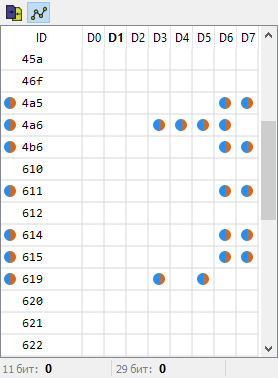
Messages 3FC and 4A5 can be discarded because their behavior does not match vehicle mileage.
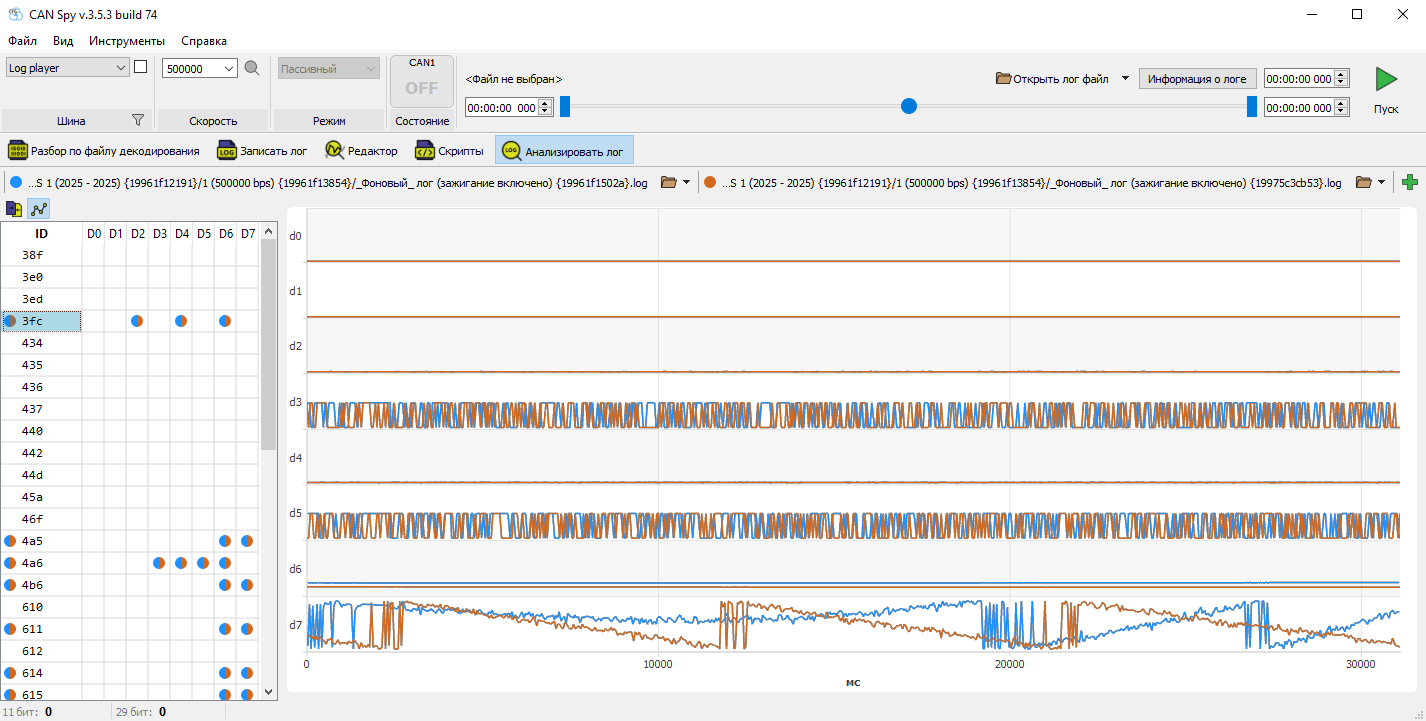
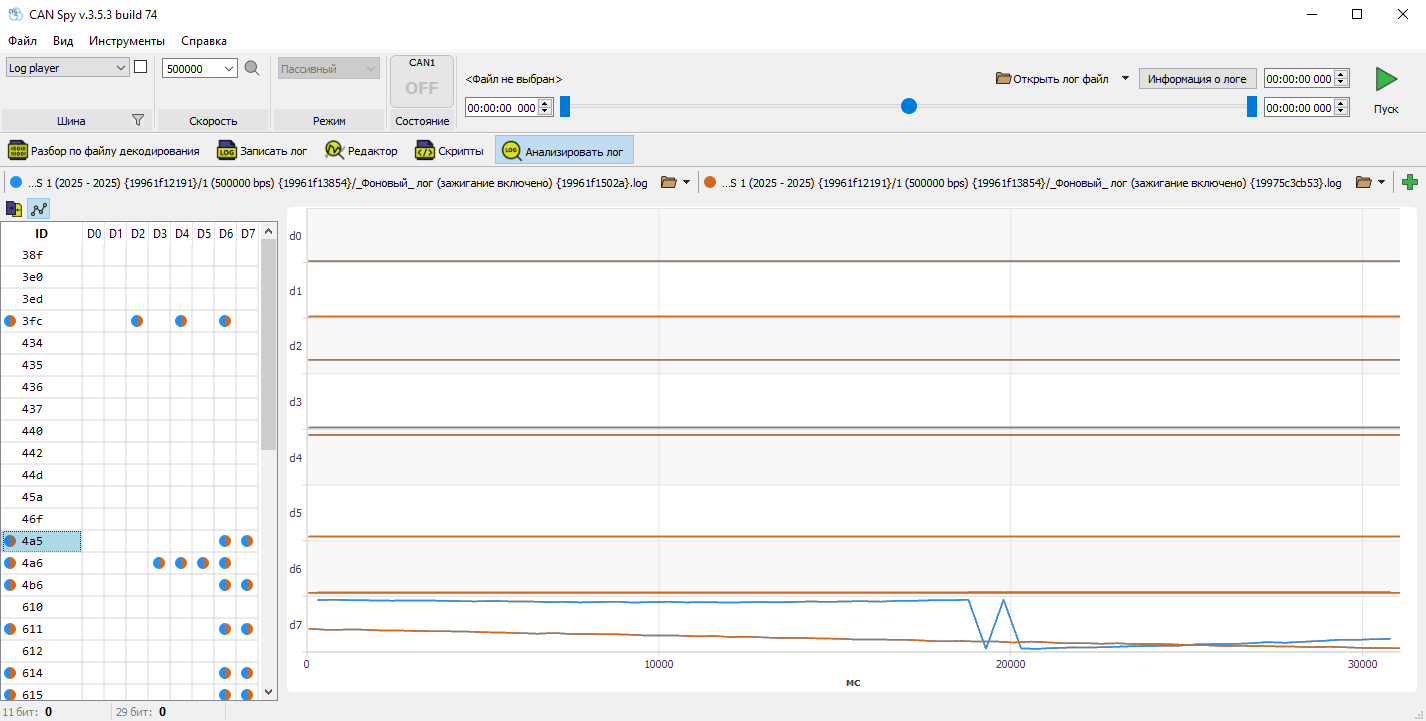
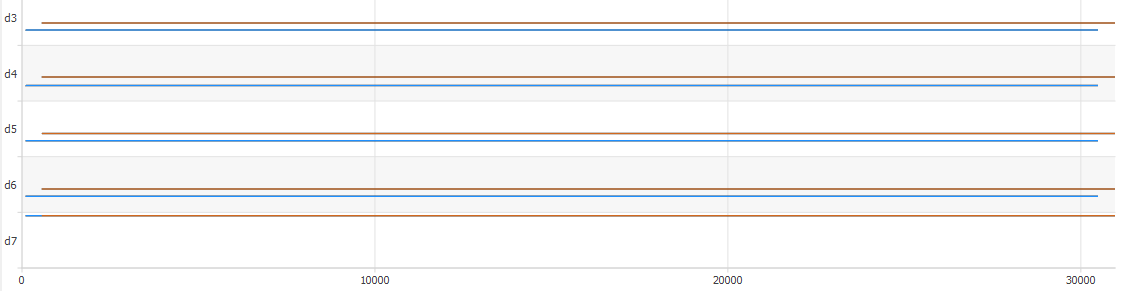
In message 4A6, all four bytes change by nearly the same amount, suggesting that these are four independent parameters rather than one multi-byte value.
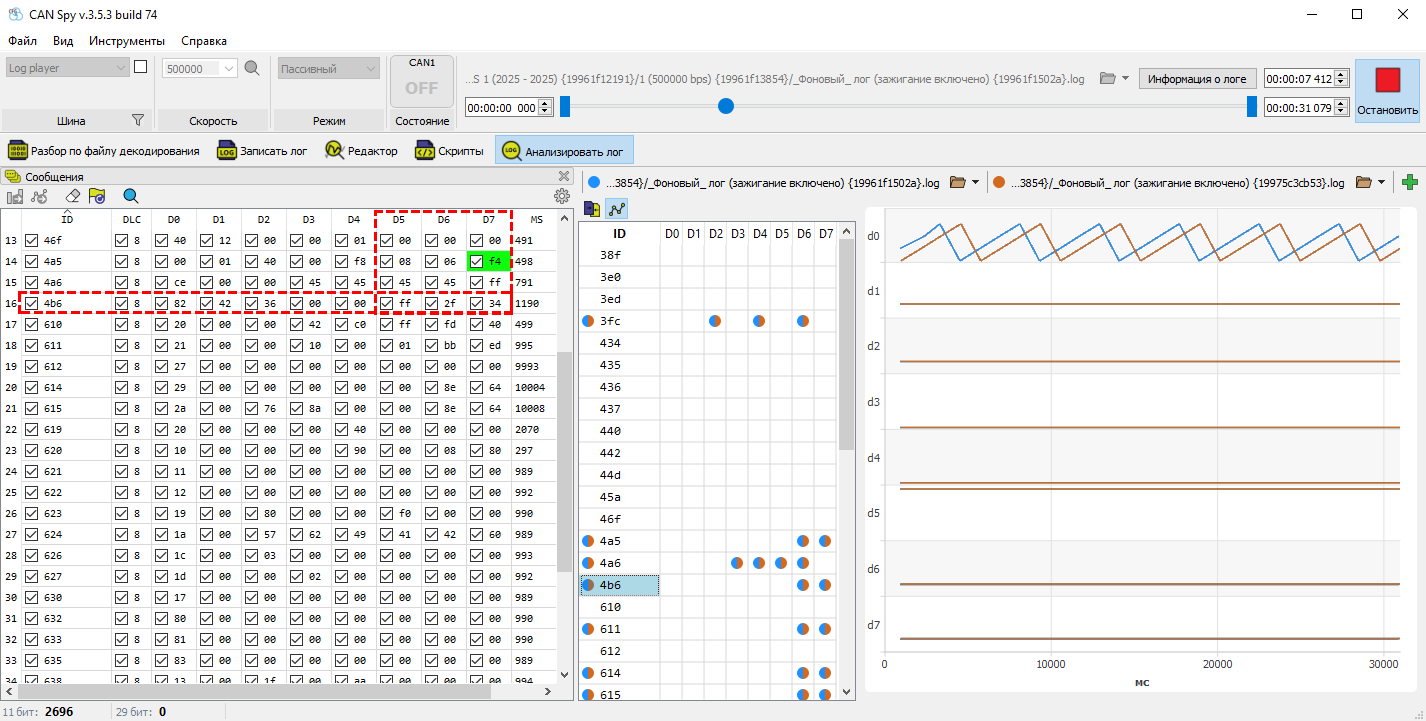
In message 4B6, bytes D6 and D7 change, while D5 is always FF, indicating that this byte is unused. As established earlier, the mileage value requires at least another half-byte, so this candidate can be rejected.
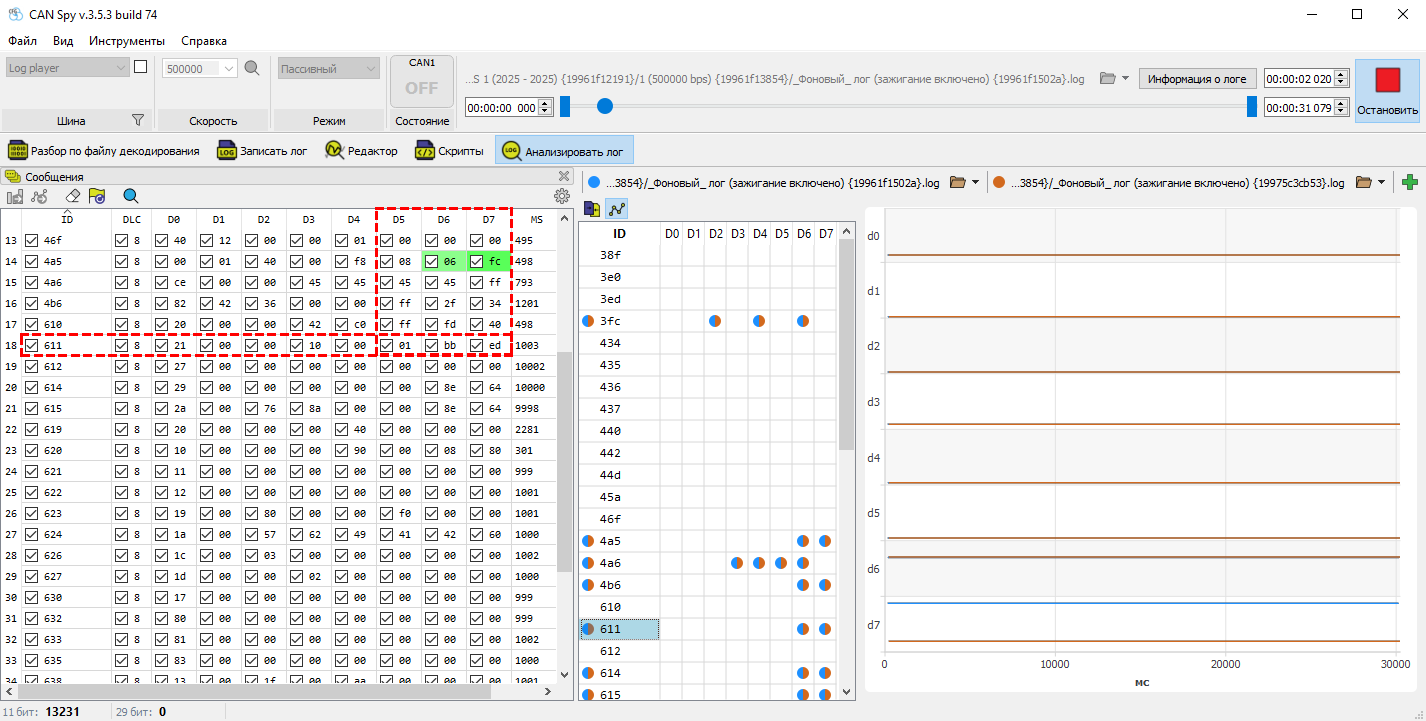
Message 611 satisfies all requirements. Moreover, bytes D5-D7 contain the hexadecimal value 1BBED, which exactly matches the recorded mileage of 113645.
¶ Parameter
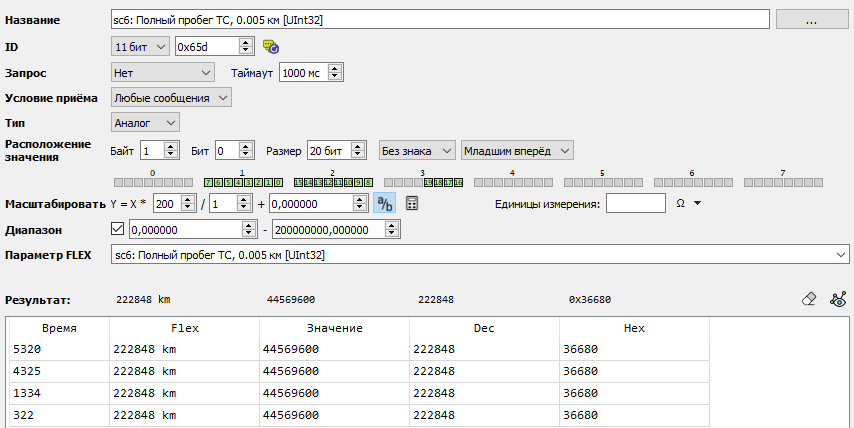
The parameter configuration is shown below.
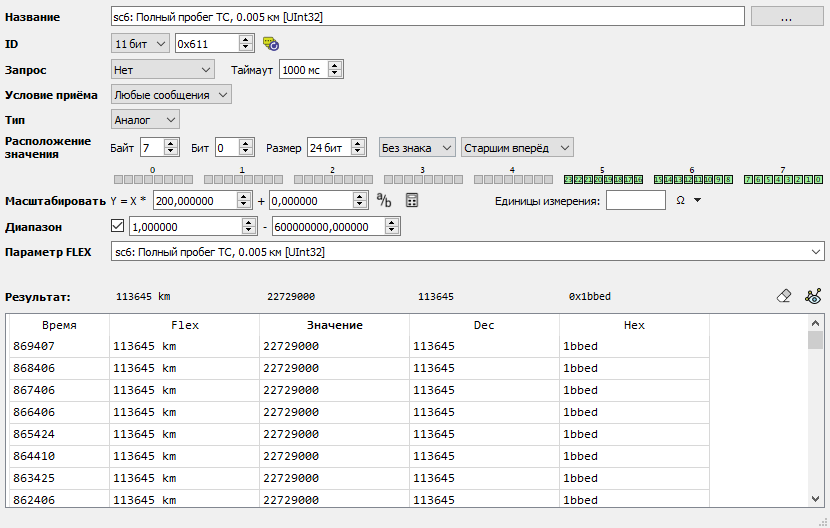
Why is the scaling factor 200 if the CAN value is transmitted without scaling?
This is a characteristic of the selected FLEX parameter. Vehicle mileage is measured in 0.005 km/bit, so the value must be multiplied by 200 to obtain the actual mileage.
The same principle applies to:
- sc3: Total Fuel Consumption, 0.05 L [UInt32]
- sc1: Fuel Level, 0.1 L [UInt16]
Always verify the result using the FLEX column in the results table. It should match the value displayed on the vehicle's instrument cluster.
¶ Practical Exercise
Download the archive below and try to identify the vehicle mileage yourself.
The mileage value is included in each file name.
¶ Solution